WiFi Lens Features
Focused views for troubleshooting Wi‑Fi performance, coverage, and channel usage.
WiFi Lens turns the raw Wi‑Fi subsystem of your Mac into something you can actually see. Instead of a single signal bar, you get a live picture of every network around you — their bands, channels, signal strength, and how crowded each frequency really is. The views below each answer one question at a time, whether you are hunting a dead spot, picking a cleaner channel, or just curious about what is in the air.
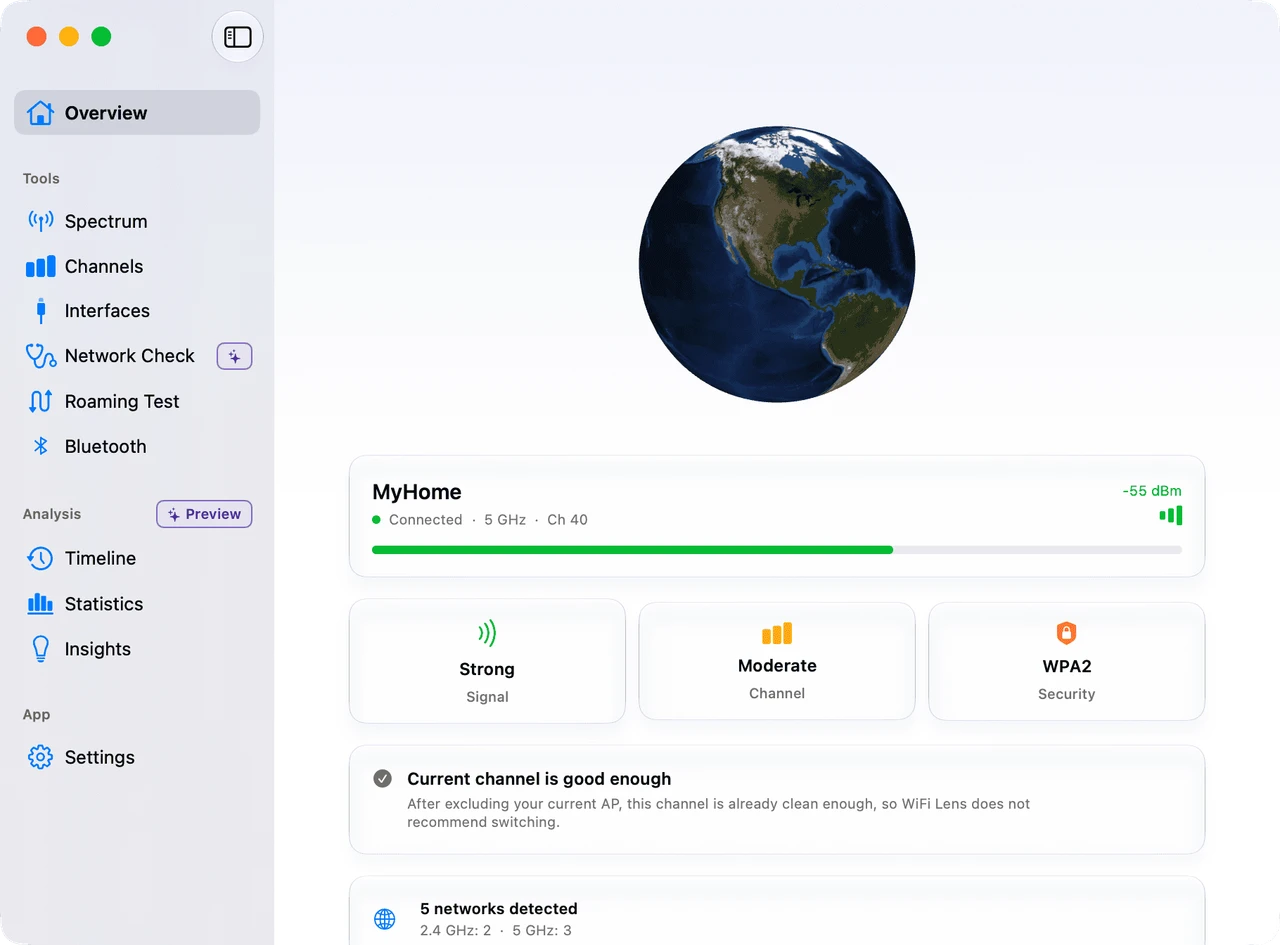
Overview dashboard
Check your current connection health first. The overview shows signal strength, channel quality, security, and the most useful next step.
- Current connection health at a glance
- Actionable channel suggestions
- See which band is busiest
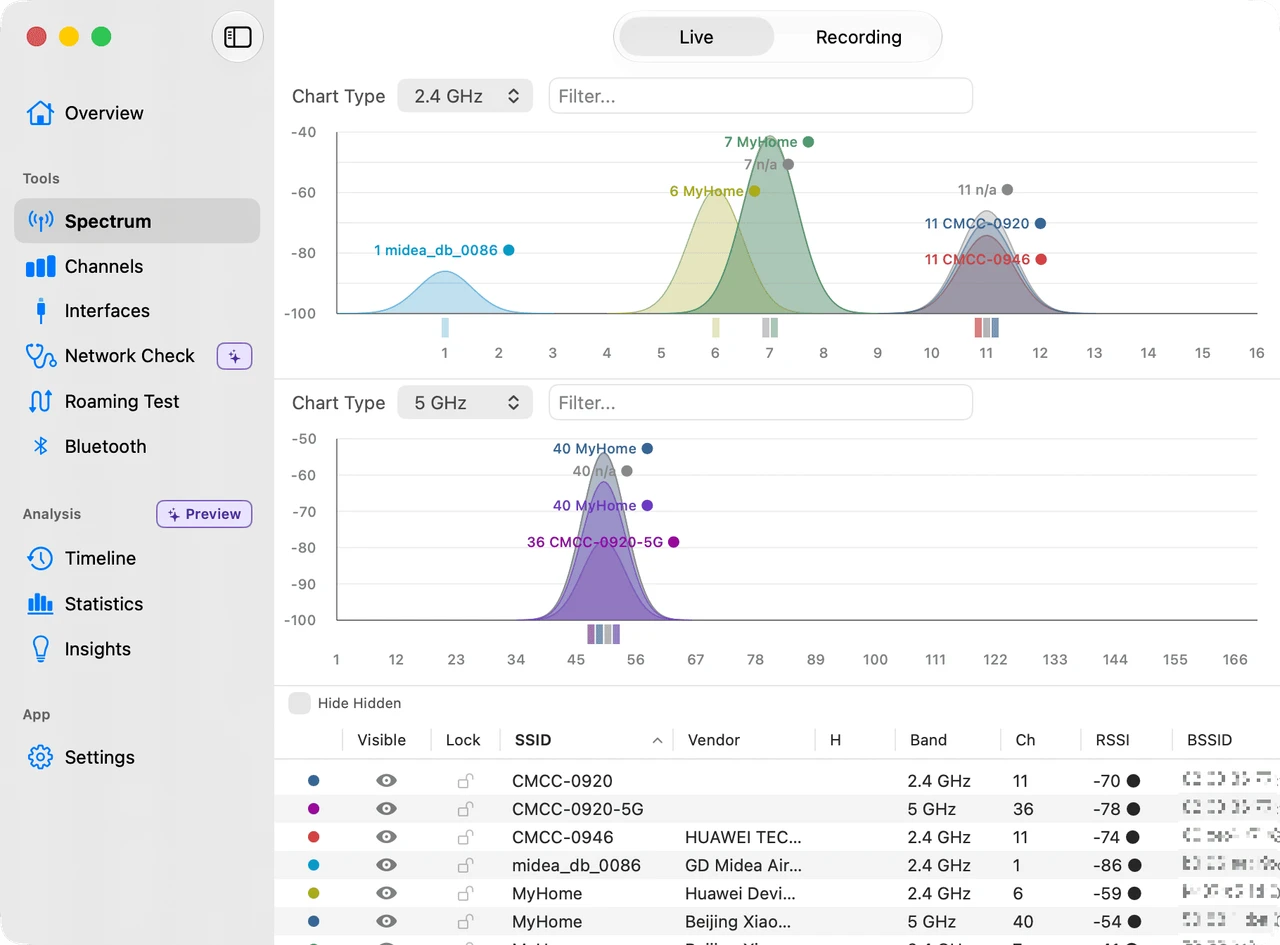
Spectrum scanner
See live spectrum activity across all major Wi‑Fi bands. Quickly spot where things are busiest and which channels are jammed.
- Live tri-band spectrum view
- Spot crowded channels at a glance
- Zoom, pause, and inspect details
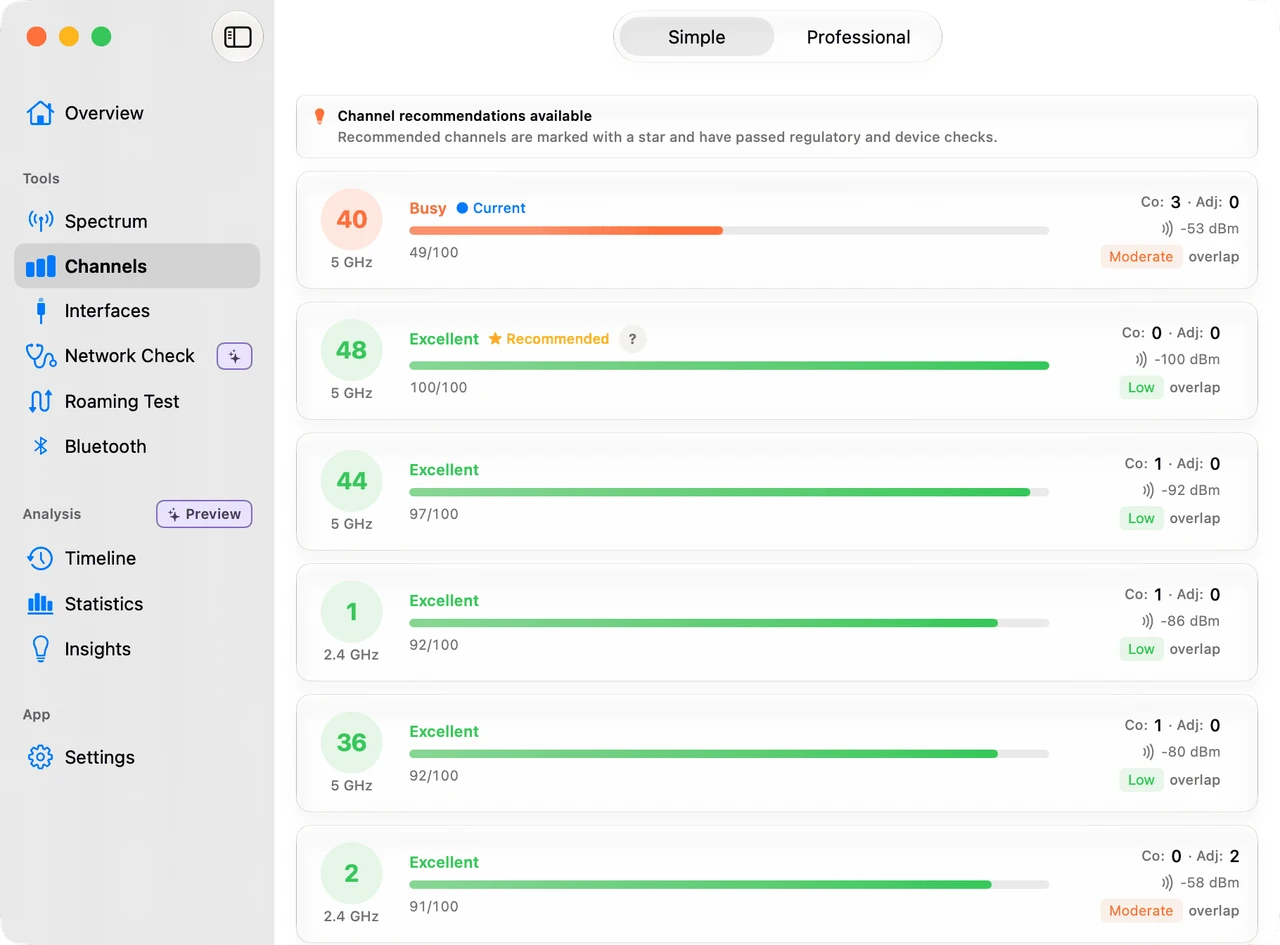
Channel quality analyzer
Compare channel scores before changing your router settings. WiFi Lens suggests cleaner options based on your region and device compatibility.
- Per-channel quality scores
- Region-aware suggestions
- Find the cleanest channels
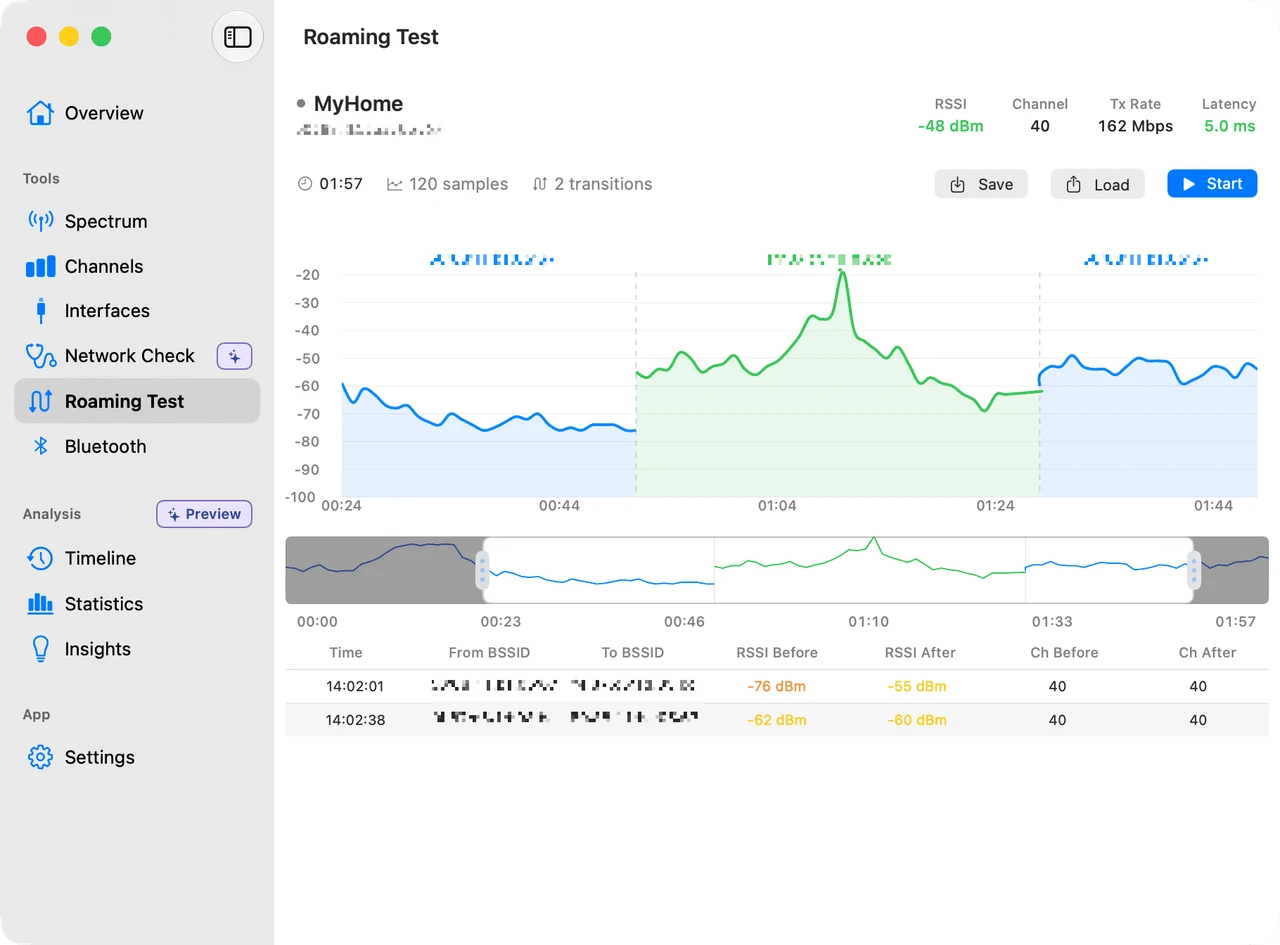
Roaming test
Walk around with your laptop and verify how your devices switch between access points. Review handoffs, signal history, and saved sessions to understand your Wi‑Fi coverage.
- See when devices switch to another AP
- Watch signal changes as you move
- Save and replay roaming sessions
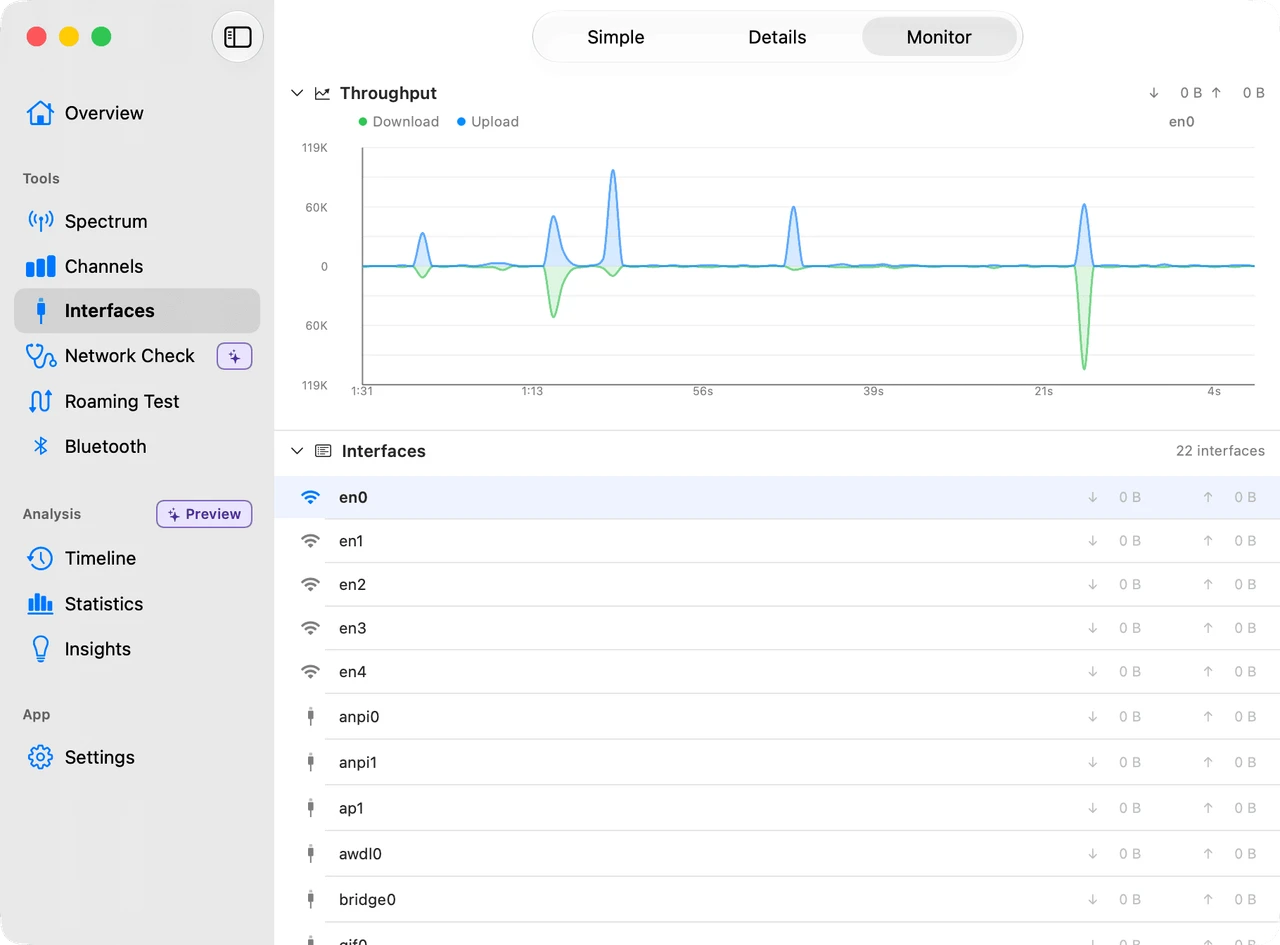
Network interfaces
See all your network interfaces in one place — Wi‑Fi, wired, VPN, and more. Check detailed link info and monitor real-time throughput.
- Switch between quick status and deep detail
- Watch live throughput over time
- Wi‑Fi, Ethernet, VPN, and virtual links
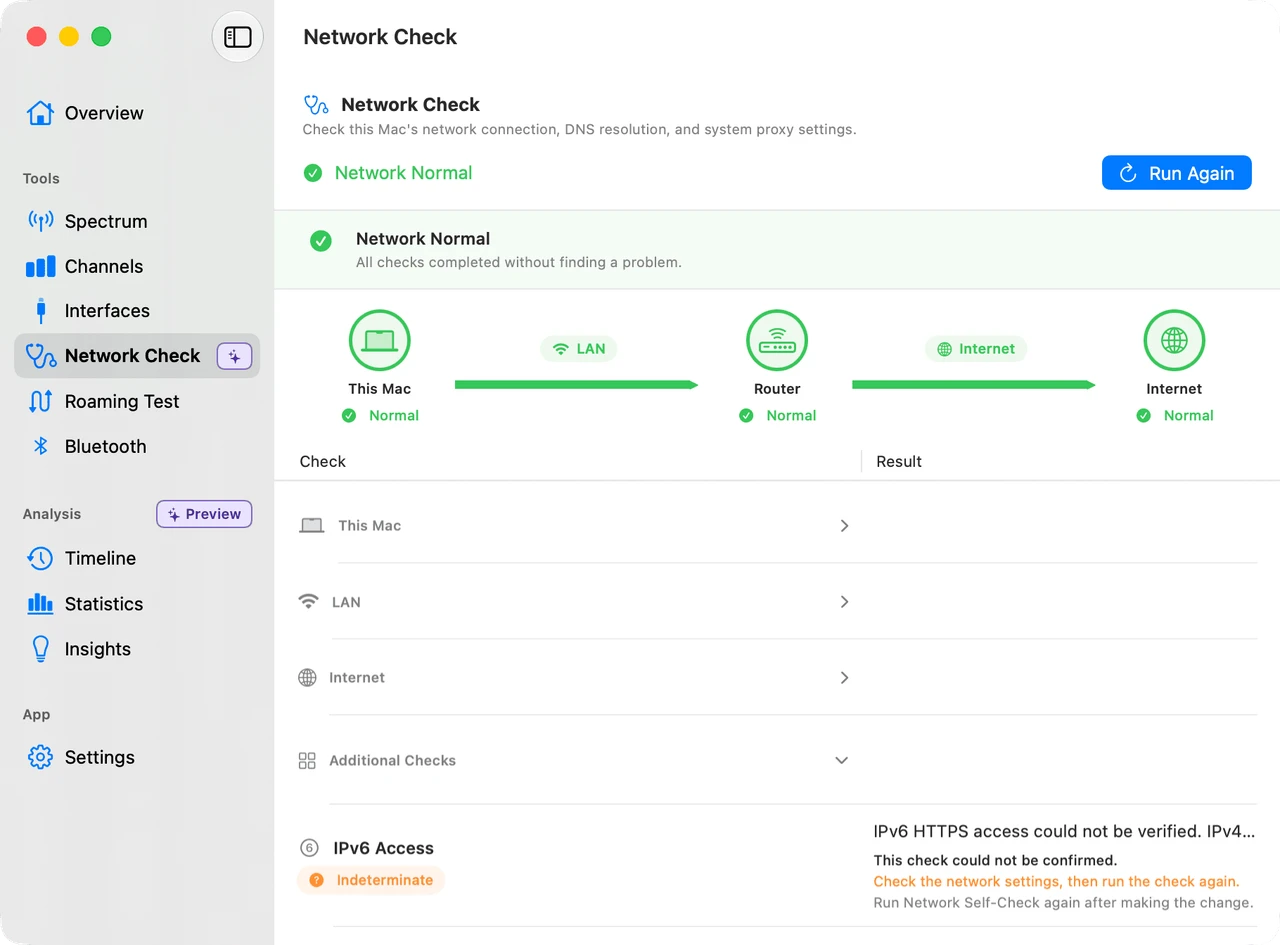
Network Self-Check
Run on-demand diagnostics across three stages — This Mac, LAN, and Internet — covering connectivity, DNS, gateway, proxy, and VPN routing, all processed locally with clear Normal, Abnormal, or Indeterminate verdicts.
- Three-stage checks: This Mac, LAN, and Internet
- Spots VPN/TUN proxy routing and captive portals
- Normal, Abnormal, or Indeterminate verdict — local-first
AP Radar
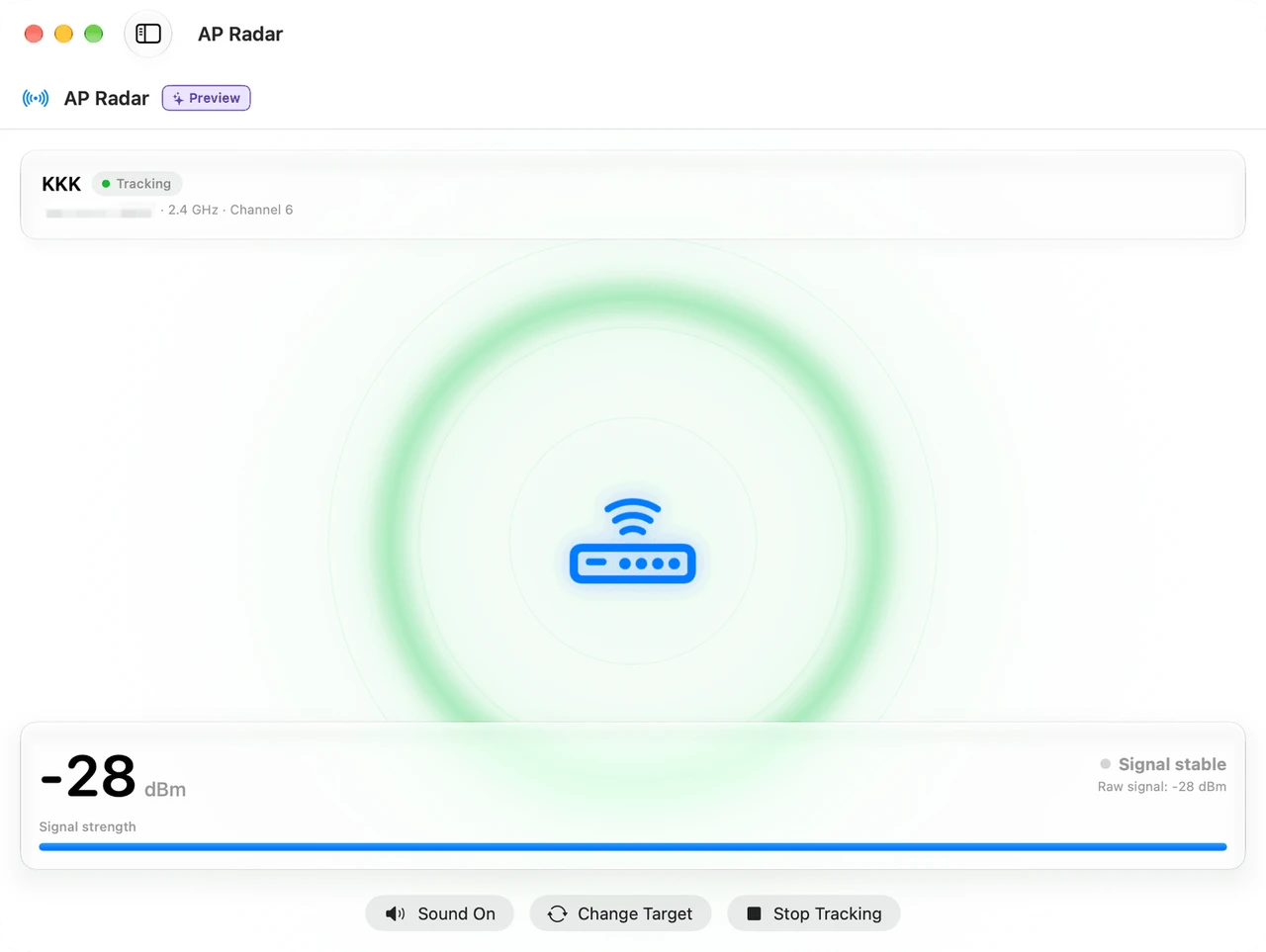
PreviewAP Radar (Preview) lets you select an access point and follow its received signal strength as you move. See whether the signal is getting stronger, weaker, or staying stable, with a clear signal-lost state when the target disappears. It provides RSSI-based guidance, not exact direction or distance.
- Track one access point as you move
- See stronger, weaker, stable, or signal-lost states
- Optional pulse audio follows signal strength
Menu bar status
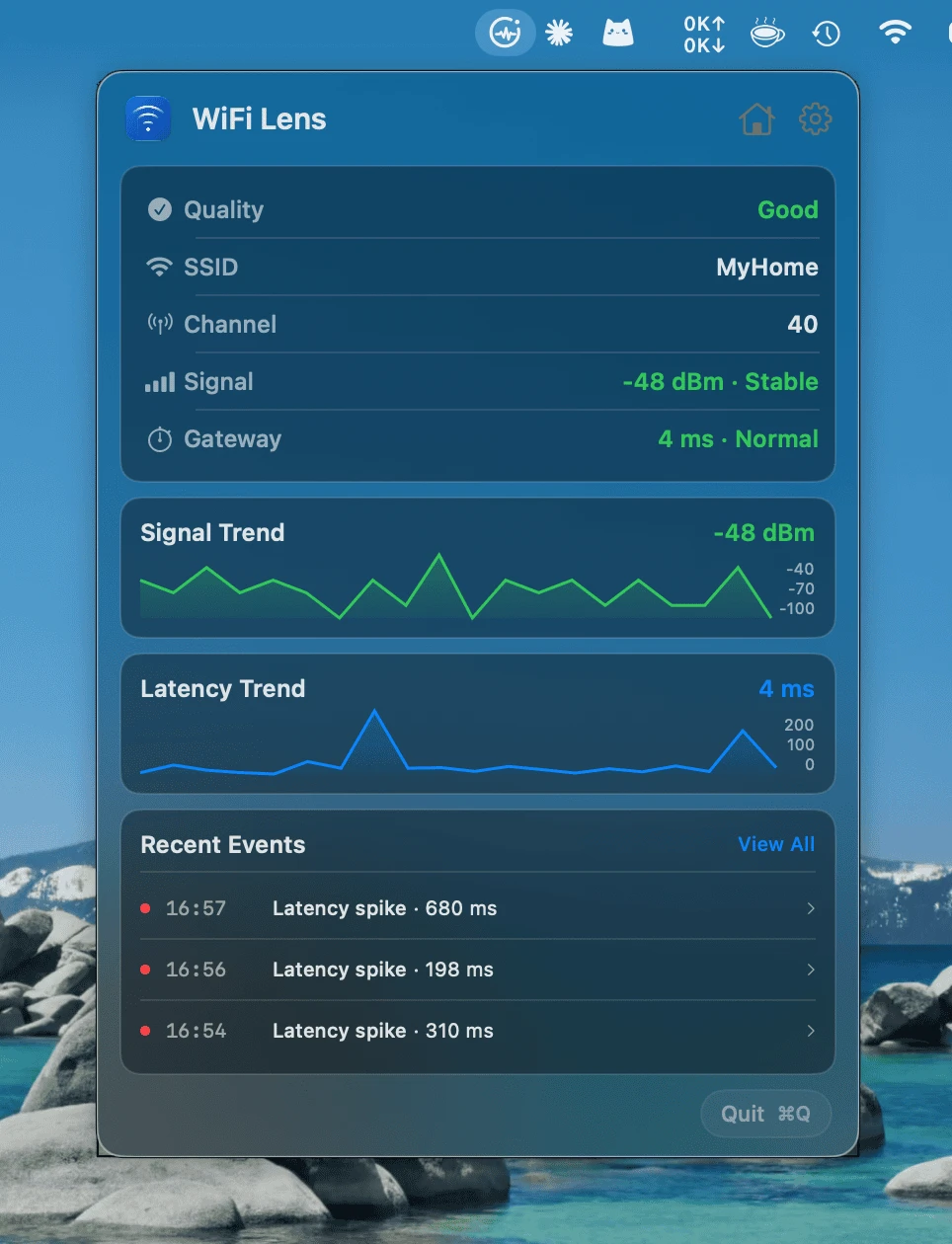
ProKeep a live Wi-Fi overview in your menu bar — current network, signal strength, and channel at a glance, with deep links into Timeline events.
- Live Wi-Fi status in the menu bar
- Current network, signal, and channel at a glance
- Quick access to Timeline events
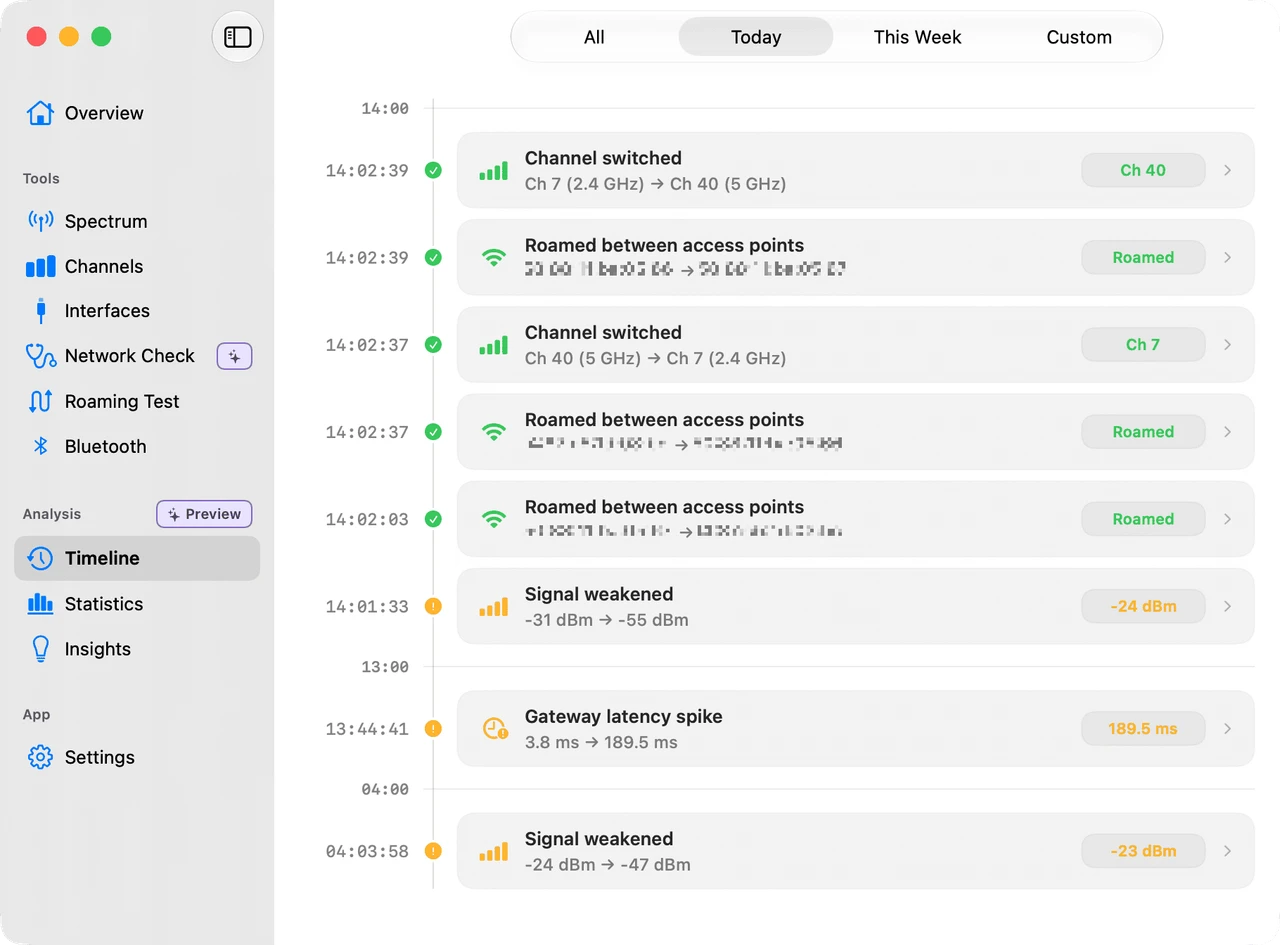
Timeline
ProTrack Wi-Fi events over time — see signal changes, network transitions, and connection history at a glance.
- Chronological Wi-Fi event history
- Signal and network change tracking
- Filter by event type and date range
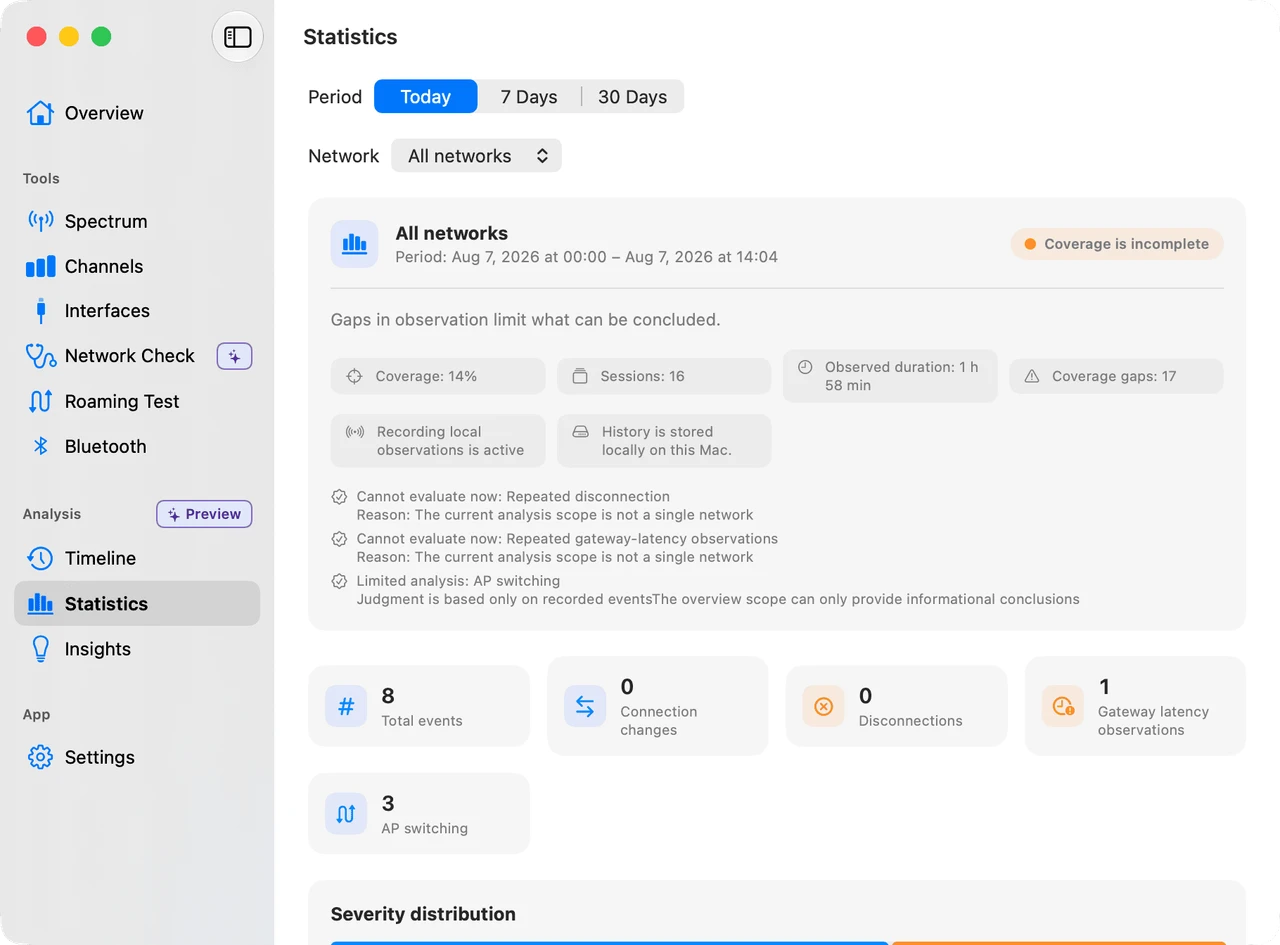
Statistics
ProAnalyze your local Timeline history — event totals, severity distribution, and session and roaming rollups, scoped to any date range.
- Analyze your local Timeline history
- Event totals and severity distribution
- Filter by date range and scope
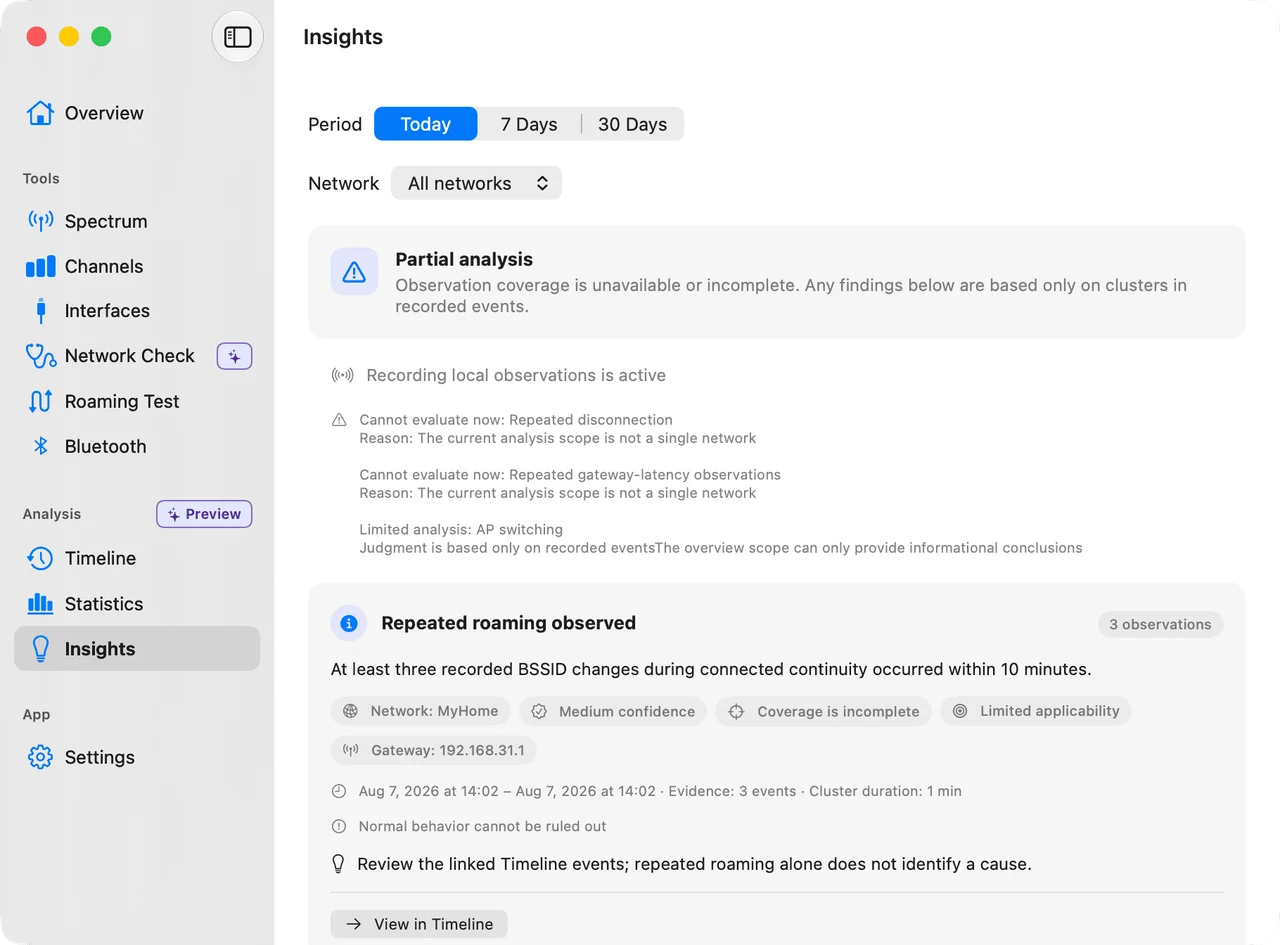
Insights
ProGet explainable findings from your Timeline history — grouped by connectivity, performance, and stability, with evidence that links back to Timeline events.
- Explainable findings from Timeline history
- Grouped by connectivity, performance, and stability
- Evidence links back to Timeline events
One dataset, every view
Every feature reads from the same live scan, so the picture stays consistent as you move between views. Start on the overview to see your current connection at a glance, drop into the spectrum scanner when something feels slow, check the channel quality analyzer before you touch your router, run a roaming test when coverage feels patchy room to room, and use Network Self-Check’s This Mac, LAN, and Internet stages when browsing breaks. In Pro, Statistics and Insights analyze your recorded Timeline history — event totals, severity breakdowns, and explainable findings that link back to Timeline evidence. The network table and interface views are there whenever you want the full, unfiltered detail.
From live diagnosis to a complete troubleshooting record.
WiFi Lens Pro keeps the live analysis tools together with menu bar monitoring, Timeline history, Statistics, and Insights — so you can keep watching a network, revisit what happened, and investigate with evidence.
Start with the question you need to answer.
Use the focused guides when you need to check a channel, compare signal between rooms, or choose the right kind of network analyzer for your Mac.
WiFi Channel Analyzer for Mac
Compare nearby networks and channel congestion across 2.4, 5, and 6 GHz.
Explore the landing page → How-toHow to check a Wi-Fi channel
Inspect the current channel with macOS tools, then compare it with nearby networks.
Read the guide → Signal and coverageHow to check Wi-Fi signal strength
Use RSSI, noise, and repeatable room-to-room tests without relying on one threshold.
Read the guide → Tool selectionNetwork Analyzer for Mac
Choose between Wi-Fi analysis, packet capture, port scanning, and traffic monitoring.
Choose by task →Start on the page that matches your question
WiFi Lens Pro
Live Wi-Fi analysis plus Timeline, Statistics, Insights, menu bar monitoring, and the complete long-term troubleshooting workflow.
View page AI WorkflowsChat with your Wi‑Fi
WiFi Lens can connect to MCP, letting compatible AI desktops such as Codex Desktop and Claude Desktop read Wi‑Fi data directly — all processed on your machine, nothing uploaded to the cloud. Ask "which channel is least crowded?" or "what stands out in nearby networks?"
View page GuideConnected to Wi-Fi but no internet
DHCP, DNS, proxy, VPN state, and the macOS settings that produce the same symptom.
Read the guide GuideInternet stops after a VPN disconnect
Stale proxy settings, leftover DNS resolvers, and virtual interfaces that did not go away.
Read the guide Wi-Fi analyzerWi-Fi Analyzer for Mac
What WiFi Lens can see on your Mac, which edition covers it, and where to start.
View page CompareWiFi Lens vs NetSpot vs inSSIDer
Compare macOS Wi-Fi analyzers for scanning, channel analysis, connection diagnostics, privacy, and automation.
View page