Fix the Wi-Fi you use every day
Find dead zones, check whether nearby networks crowd your channel, and choose better router settings without decoding raw Wi-Fi data.
WiFi Lens Pro is the native Mac app for live Wi-Fi diagnostics, continuous monitoring, history, and deeper investigation — without accounts, cloud sync, or telemetry.
Looking for the open-source edition? View on GitHub.WiFi Lens Pro is the complete Mac app for live diagnostics, menu bar monitoring, Timeline history, Statistics, and Insights. An open-source edition is also available for basic local analysis.
WiFi Lens is a native macOS app (macOS 14+) — open this page on your Mac to download, or copy the link to send to yourself.
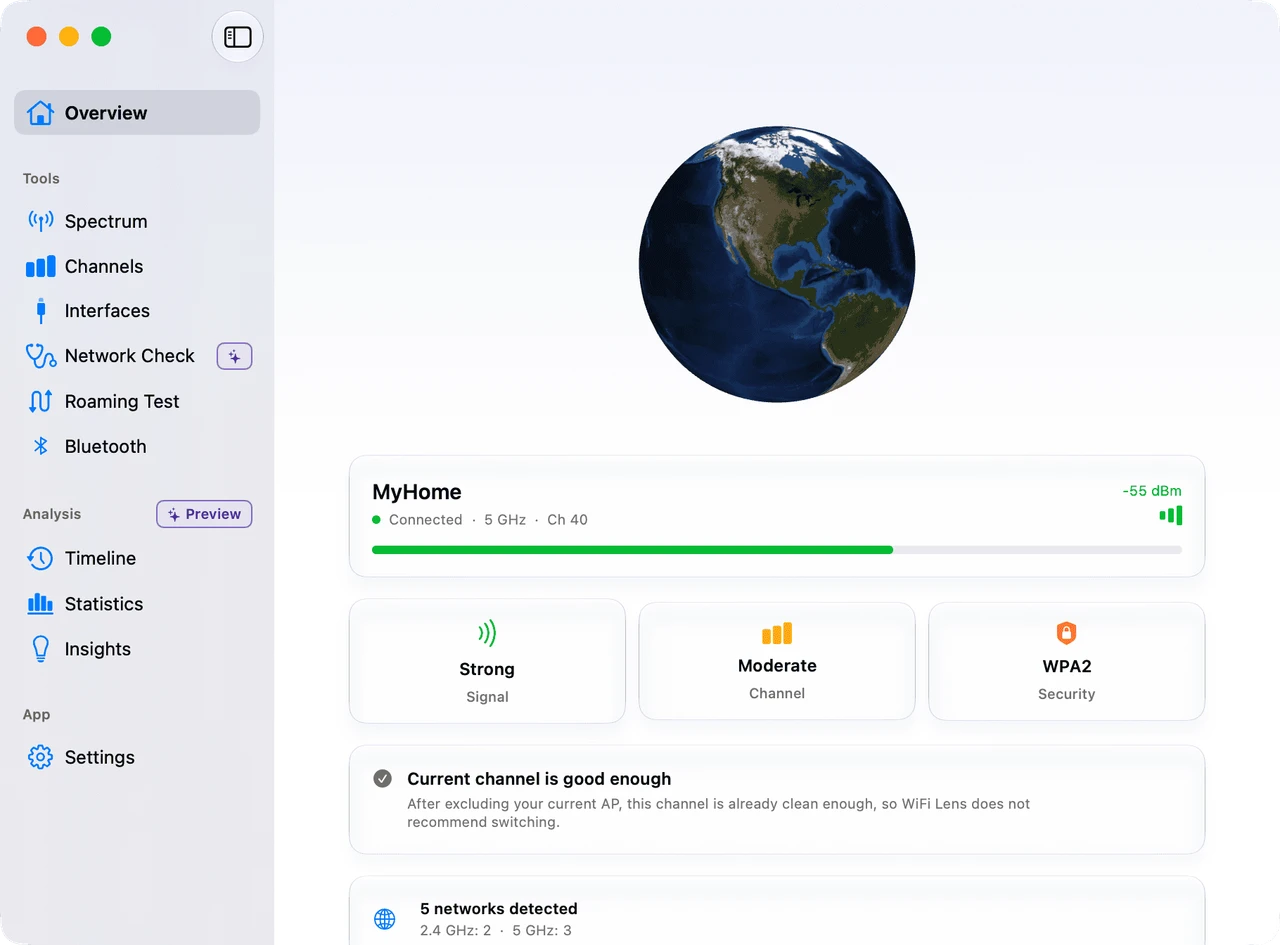
WiFi Lens is a native macOS app that turns nearby wireless activity into a readable map. Scan 2.4, 5, and 6 GHz networks, compare signal strength, spot crowded channels, and test coverage as you move through a space. The app processes scans on your Mac. When you enable its local MCP server, compatible AI tools can inspect the same data without uploading it.
Explore every viewFind dead zones, check whether nearby networks crowd your channel, and choose better router settings without decoding raw Wi-Fi data.
Inspect channel use, security, roaming handoffs, and interface health while troubleshooting offices, labs, or small managed networks.
Read live scan data through the local MCP interface, test Wi-Fi-aware workflows, and inspect the open-source Swift implementation.
A quieter homepage. A clearer product story.
Start with the product itself, then go deeper only where you need it.
Check your current connection health first. The overview shows signal strength, channel quality, security, and the most useful next step.
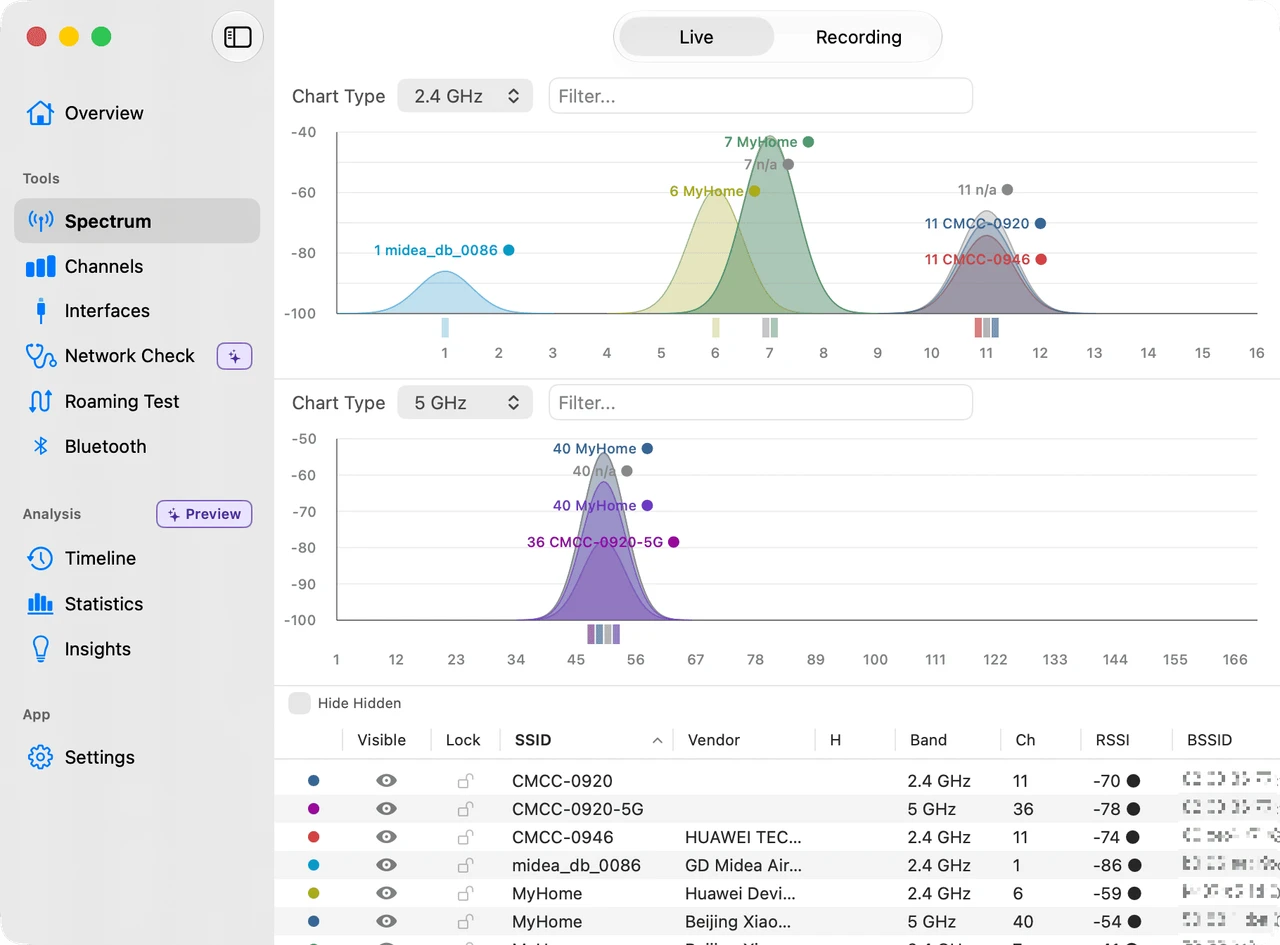
See live spectrum activity across all major Wi‑Fi bands. Quickly spot where things are busiest and which channels are jammed.
WiFi Lens can connect to MCP, letting compatible AI desktops such as Codex Desktop and Claude Desktop read Wi‑Fi data directly — all processed on your machine, nothing uploaded to the cloud. Ask "which channel is least crowded?" or "what stands out in nearby networks?"
Here are the top 3 strongest networks from your current scan:
MyWiFi -48 dBm ch 6 2.4 GHz WPA3 Office-5G -52 dBm ch 36 5 GHz WPA3 HomeNet -55 dBm ch 149 5 GHz WPA2 All three are on separate channels with no overlap. MyWiFi has the cleanest signal at -48 dBm.
WiFi Lens processes everything locally. No accounts, no cloud, no tracking.
Have a question, found something interesting, or want to see what's being built next?
Keep the homepage short. Use the deeper pages when you need specifics.
Focused views for troubleshooting Wi‑Fi performance, coverage, and channel usage.
View page AI WorkflowsWiFi Lens can connect to MCP, letting compatible AI desktops such as Codex Desktop and Claude Desktop read Wi‑Fi data directly — all processed on your machine, nothing uploaded to the cloud. Ask "which channel is least crowded?" or "what stands out in nearby networks?"
View page Get WiFi LensLive Wi-Fi analysis plus Timeline, Statistics, Insights, menu bar monitoring, and the complete long-term troubleshooting workflow.
View page PrivacyWiFi Lens processes everything locally. No accounts, no cloud, no tracking.
View page CompareCompare macOS Wi-Fi analyzers for scanning, channel analysis, connection diagnostics, privacy, and automation.
View page FAQAnswers to common questions about WiFi Lens — pricing, macOS requirements, data privacy, Pro vs OSS differences, and 6 GHz support.
View pageWiFi Lens Pro is the complete Mac app and is available as a one-time purchase through the Mac App Store. An open-source edition is also available for free on GitHub with a substantial set of live analysis tools. Pro extends WiFi Lens into menu bar monitoring, Timeline event history, Statistics, and Insights.
The open-source edition includes a substantial set of live analysis tools, including spectrum scanning, network tables, channel scoring, roaming tests, connection diagnostics, Network Self-Check, and MCP AI integration. WiFi Lens Pro includes those capabilities and extends the workflow with menu bar monitoring, Timeline event history, Statistics, and Insights.
Absolutely not. WiFi Lens has no backend servers whatsoever. All data is processed locally on your Mac. Even the MCP AI integration only communicates through your machine's local interface — nothing is sent to any remote server. To be crystal clear: we don't collect anything.
WiFi Lens requires macOS 14 (Sonoma) or later. It supports both Apple Silicon and Intel Macs. A quick note: 6 GHz band scanning requires your Mac hardware to support Wi‑Fi 6E or Wi‑Fi 7 (available on newer Apple Silicon models). Older Intel Macs or non-6E models can still use all 2.4 GHz and 5 GHz features without limitation.
This is a macOS system-level limitation. The wireless scanning APIs macOS provides to apps don't always explicitly flag a network as belonging to the 6 GHz band. For Wi‑Fi 6E networks, the system typically encodes band information through the channel number or center frequency rather than returning a "6 GHz" label directly. As a result, some 6 GHz networks may appear as 5 GHz or without a specific band label in scan results. This is system behavior, not a bug — it doesn't mean the device isn't using a 6 GHz network.
Full walkthroughs that work from the network down to the settings macOS keeps per network.
DHCP, DNS, proxy, VPN state, and the macOS settings that produce the same symptom.
Read the guide GuideStale proxy settings, leftover DNS resolvers, and virtual interfaces that did not go away.
Read the guideLooking for a Mac Wi-Fi tool comparison? WiFi Explorer alternative AirPort Utility alternative